MGExp Forum FAQ
I forgot my password.
Please see the help topic: How to Reset Your Password
How do I put a picture of me or my car next to my posts?
Please see the help topic: How to Add Your Profile Photo
What do the icons in the Topic List mean?
Please see the help topic: About the Forum Topic List Icons
How do I attach a picture to my post?
There are a few ways you can do this.
Option #1 - Use the Attachments feature when composing a new topic or reply. The image will be resized automatically.
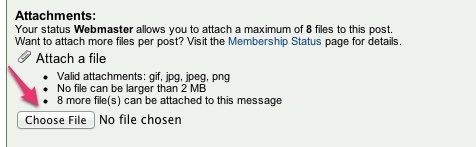
Option #2 - Link to your image on the web (not just on your computer's hard drive). Then put the image address in the [img] tag as described below. Please make sure the image isn't bigger than around 800 pixels wide, so it doesn't overflow off the sides of the page.
Some websites where you can "host" your images for free: Photobucket | Flickr | Imgur
Option #3 - Start a journal and post your picture there. It will be automatically resized, and then you can post the image address between [img] tags as described below. You can right-click on any image on a web page and "Copy Image Link" to get the image address.
How do I put a picture in my forum signature?
- Upload your signature photo to a photo hosting service such as Imgur, ImageShack, PhotoBucket, Flickr etc.
- Copy the "direct link" to your photo. Example: http://img685.imageshack.us/img685/5120/bessar2minhand.jpg
- Go to your Forum Settings page.
- Click on "Options → Forum Settings", change "Add my signature to this message" checked by default" to YES and Submit.
- Click on "Edit Signature"
- Paste the direct link you copied above between [img] ... [/img] tags and Submit.
Example: [img]http://img685.imageshack.us/img685/5120/bessar2minhand.jpg[/img]
Note: As per the Forum Guidelines, you should not use a forum signature image taller than 250px and no wider than 700px.
Use an image viewer/resizer application on your computer, or a online service such as PicResize to shrink your photos.
I want to expand/collapse the thread display
Please note that there are two different view settings that you can control.
The first is the Topic View, which is the list of all topics in a particular forum. You can switch between two modes via the link at the bottom of the screen. Selecting "Switch View" will cause only the topic's Subject to be displayed, one per line. Selecting "Switch View" again will cause each topic to display all of the messages in the thread below it, in hierarchical fashion.
The second setting is the Message View, which is what you see when you click on a topic to read all the posts. Selecting "Switch View" will allow you to view the contents of all the messages in the thread at once. Selecting "Switch View" again will display one message a time, with a hierarchical display of all the messages in the thread, which can clarify which messages are being replied to.
When I come back, my display settings aren't the same
You must have "cookies" enabled in order for your web browser to save your display preferences. Flushing your cache ("Temporary Internet Files" in Windows-speak) may clear your cookies, but if cookies are enabled your settings will be remembered for the following session. Your cookie setting will be in Preferences or Internet Options or something like that (don't ask me, because every web browser is different). Some ad-blocking software may also interfere with the forum's saved settings.
I have to log in every time I visit the forum
First, please carefully verify that the TIME, DATE AND TIME ZONE are correctly set on your computer. This is by far the most common cause of login problems. If you are using Windows, open Control Panel, Date and Time Preferences, click on the Internet Time tab and check "Automatically synchronize with an Internet time server". This will prevent the problem from happening again in the future. Restart your web browser and sign out, then sign in again.
If that doesn't help, try deleting cookies for "mgexp.com" from your web browser:
How to delete cookies from your web browser
Internet Explorer: Tools -> Internet Options
Firefox: Tools -> Options -> Privacy -> Show Cookies
Chrome: Preferences -> Show Advanced Settings -> Content Settings -> All Cookies and Site Data
If you're using Windows, you may need to reboot your computer after deleting cookies (for some bizarre reason...)
If that STILL doesn't fix it, please try using an alternate web browser, such as:
Alternative Web Browsers for PC or Mac
Google Chrome - http://www.google.com/chrome (recommended)
Mozilla Firefox - http://www.mozilla.com/
Apple Safari - http://www.apple.com/safari/
If using an alternate browser fixes your problem, then the problem must lie with your browser, security software/firewall, or computer settings.
Can I use HTML markup in the forum?
No, but you can use the editor toolbar buttons, which will insert the correct BBCode formatting markup for you.
Some BBCode examples:
[url]http://phorum.org/[/url]
Creates a URL that is linked (clickable).
[url=http://phorum.org/]Phorum Site[/url]
Links the text 'Phorum Site' to http://phorum.org/
[email]email@address.com[/email]
Creates a linked (clickable) email address.
[img]http://somesite.org/picture.jpg[/img]
Displays the specified image in your message.
[b]Bold Text[/b]
[u]Underlined Text[/u]
[i]Italicized Text[/i]
Makes the text bold, underlined, or italicized.
[center]Centered Text[/center]
Centers text.
[quote]Does this quote text?[/quote]
This will indent the text inside the tags.
Tags can also be combined, just make sure to close them in reverse order:
[url=http://phorum.org/][img]http://phorum.org/newsite/logo.gif[/img][/url]
Can I edit, change, or delete my forum post?
Yes, just click on the topic and click the Edit button, as shown below:
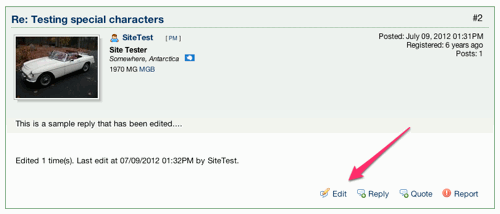
There is a time limit of about 2 weeks from the time the message was created, after that the message can no longer be edited (except by a moderator). Posts in the Buy, Sell & Trade Forum are editable forever.
If you need to change an old "locked" topic or post that doesn't have an Edit button, click the Report button below your own post, and fill in the reason for the request. The post will be flagged for review by a moderator who will edit or remove the post on your behalf.
The forum isn't working property or looks terrible
You're probably using a very old web browser that doesn't support web standards. Please use the Software Update feature of your computer's operating system, or check your web browser's menus for something like "Check for New Version".
Chrome or Firefox are free, modern, and secure web browsers available for PC and Mac.
Please note that this website requires Javascript and cookies enabled in order to function properly.
You do not need Java or Shockwave Flash to be enabled or installed to use this website.
Still have questions or need to report a bug?
Email webmaster@mgexp.com and please include a link or screenshot of the issue.